Runway Gen‑4 is the newest version of Runway’s AI‑powered video generation tool. It brings a big change: the ability to keep the same characters, objects, and locations the same across many shots. That means you can create a whole movie or a series of scenes that look like they belong together, even if you generate each frame separately. In this article we’ll break down what Gen‑4 can do, how it compares to earlier versions, and how you can start using it for your own projects.
What Makes Gen‑4 Different?
Consistent World Environments
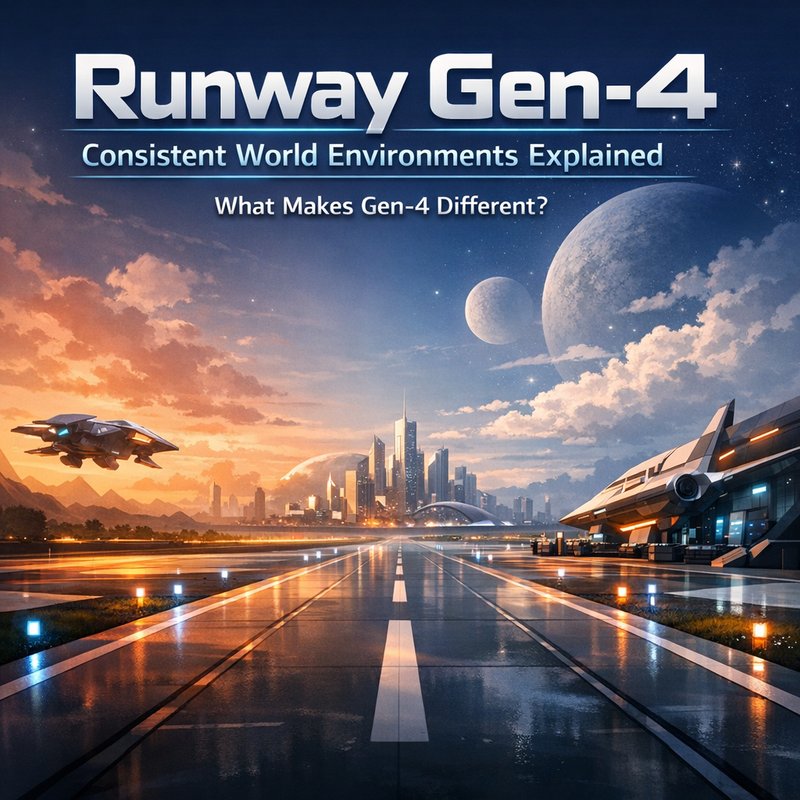
The core feature of Gen‑4 is “Consistent World Environments.” When you generate a scene, the model remembers the style, lighting, and geometry of the world it created. If you ask it to generate a new shot in the same world, it will keep those details the same. This is a big step up from Gen‑3, where each shot could look slightly different, making it hard to stitch them together.
Turbo Variant for Fast Iteration
Runway also added a Turbo mode. Turbo lets you generate frames quickly, which is great for early drafts or storyboards. The trade‑off is that the images are a bit lower quality, but you can always switch back to the full‑quality mode for the final pass.
1080p/24fps Quality
Gen‑4 supports full‑HD video at 24 frames per second. That’s the standard for many film projects, so you can use Gen‑4 output directly in editing software without extra up‑scaling.
Frame‑by‑Frame Storyboard Editing
Because the world stays consistent, you can edit each frame individually and still keep the look of the whole sequence. This makes it easier to tweak camera angles or add new objects without breaking the visual flow.
How Gen‑4 Works Under the Hood
Runway’s Gen‑4 uses a large diffusion model that has been trained on millions of video clips. The model learns how to generate realistic motion and lighting. When you ask it to keep a world consistent, it stores a “world map” that contains information about the scene’s geometry and lighting. That map is reused for every new frame you generate.
The Turbo mode uses a smaller, faster version of the same model. It skips some of the heavy calculations, which speeds up generation but reduces detail. Think of it like a low‑resolution preview that you can refine later.
Getting Started with Gen‑4
1. Sign Up for Runway
If you don’t already have a Runway account, go to the Runway website and sign up. The free tier gives you a limited number of credits, but you can upgrade if you need more.
2. Choose the Gen‑4 Model
In the Runway dashboard, select the Gen‑4 model. You’ll see options for full quality and Turbo. Pick the one that fits your workflow.
3. Create a New Project
Give your project a name and choose a resolution (1080p is recommended). You can also set the frame rate to 24fps.
4. Generate Your First Scene
Type a prompt that describes the scene you want. For example: “A rainy street in a cyberpunk city at night.” Hit generate. The model will create a 24‑frame clip that looks like a short video.
5. Keep the World Consistent
When you want to add a new scene, use the same prompt or a variation that keeps the same world. The model will remember the lighting and geometry, so the new scene will match the first one.
6. Edit Frame‑by‑Frame
If you need to change a camera angle or add an object, open the frame editor. Because the world is consistent, you can move the camera or add a new element without breaking the look of the rest of the clip.
7. Export and Edit
Export the final video in your preferred format. You can then import it into any video editing software for color grading, sound, or additional effects.

Use Cases for Gen‑4
Short Films and Web Series
Because Gen‑4 keeps the world consistent, you can create a short film with multiple scenes that look like they belong together. You can also produce a web series where each episode uses the same setting.
Marketing Videos
Brands can use Gen‑4 to create product demos or brand stories that look polished. The consistent world feature helps maintain brand identity across multiple videos.
Game Prototyping
Game designers can quickly prototype environments and test camera angles. The ability to edit frame‑by‑frame lets them iterate fast.
Educational Content
Teachers can generate animated lessons that keep the same classroom or lab setting across multiple videos, making the content feel cohesive.
Comparing Gen‑4 to Gen‑3
| Feature | Gen‑3 | Gen‑4 |
|---|---|---|
| World Consistency | No | Yes |
| Turbo Mode | No | Yes |
| Resolution | 720p | 1080p |
| Frame Rate | 24fps | 24fps |
| Editing Flexibility | Limited | Frame‑by‑frame |
The biggest leap is the consistent world. In Gen‑3, each shot could look slightly different, which made it hard to create a full story. Gen‑4 solves that problem, making it easier to produce longer videos.
Tips for Getting the Best Results
- Use Clear Prompts – The more detail you give, the better the model can keep the world consistent.
- Keep Lighting Consistent – If you change the lighting in one scene, the model may try to match it in the next. Stick to a single lighting setup for a series.
- Use Turbo for Drafts – Generate a quick draft with Turbo, then refine with full quality.
- Save World Maps – If you’re working on a long project, save the world map after the first scene so you can reuse it later.
- Check the Frame Editor – Small tweaks in the frame editor can fix minor inconsistencies without re‑generating the whole clip.
Integrating Gen‑4 with Other Tools
Runway offers export options that work well with popular editing suites like Adobe Premiere or DaVinci Resolve. You can also use the Runway API to integrate Gen‑4 into your own pipeline. If you’re already using Neura AI’s tools, you can combine Gen‑4 output with Neura’s content generation or transcription services for a full media workflow.
Future of AI Video Generation
Runway Gen‑4 shows that AI can now produce longer, more coherent videos. As models improve, we’ll see even better consistency, higher resolutions, and more realistic physics. For creators, this means less time on post‑production and more time on storytelling.
Conclusion
Runway Gen‑4 is a powerful step forward for AI video creation. Its consistent world environments make it possible to produce longer, cohesive videos without the visual hiccups that plagued earlier models. Whether you’re a filmmaker, marketer, or educator, Gen‑4 gives you the tools to bring your vision to life quickly and reliably.
If you’re ready to try Gen‑4, sign up on Runway’s website and start experimenting today. And if you want to learn more about how AI can help you create content faster, check out Neura AI’s suite of tools at https://meetneura.ai.