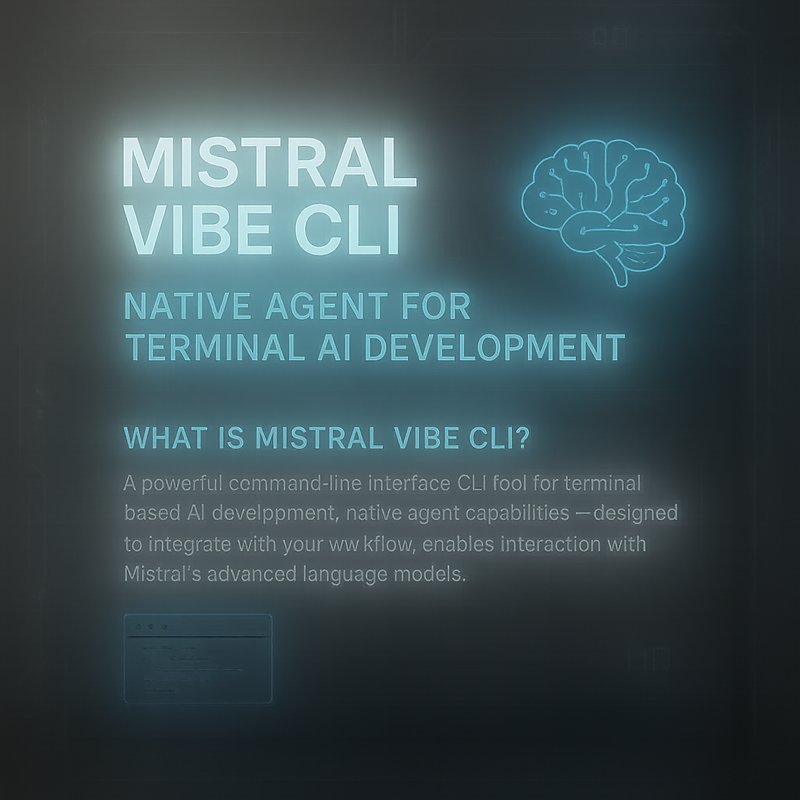
Mistral Vibe CLI is a new open‑source tool that lets developers use AI directly from their terminal or IDE. It plugs into popular editors like Zed and VS Code, and it can run on almost any machine, even a laptop. In this article we’ll walk through what Mistral Vibe CLI does, why it matters for everyday coding, and how you can start using it today.
What is Mistral Vibe CLI?
Mistral Vibe CLI is a command‑line interface that turns your terminal into an AI assistant. It uses the Mistral Vibe model series, which includes a 123‑billion‑parameter version for powerful cloud use and a 24‑billion‑parameter version that can run locally on consumer hardware. The CLI can:
- Generate code snippets
- Refactor existing code
- Write documentation
- Run tests
- Interact with APIs
- And more
Because it runs in the terminal, you don’t need a separate web app or a heavy IDE plugin. You just type a command, and the AI replies right there.
How It Works
- Install the CLI – A single
pip install mistral-vibe-cliorbrew install mistral-vibe-cligets you up and running. - Authenticate – If you want to use the cloud‑based 123B model, you’ll need an API key. For the local 24B model, no key is required.
- Run a Command – For example,
mistral-vibe generate "Create a Python function that calculates factorial". - Get the Result – The CLI prints the generated code, and you can copy it into your project.
The tool also supports a “debug mode” that shows the prompt and the raw model output, which is handy for developers who want to see how the AI thinks.
Why Developers Love Mistral Vibe CLI
Speed and Convenience
Because the CLI runs in the terminal, you can ask for help while you’re already coding. No need to switch windows or open a browser. The response time is usually under a second for the local model, and a few seconds for the cloud model.
Flexibility
You can use it with any editor that supports terminal integration. Zed, VS Code, Vim, or even a plain terminal session works. The CLI also supports custom prompts, so you can tailor the AI’s behavior to your project style.
Privacy
The 24B local model runs entirely on your machine. That means your code never leaves your computer, which is great for sensitive projects or when you’re on a public network.
Open Source
The code is on GitHub, so you can inspect, modify, or contribute. If you find a bug or want a new feature, you can open an issue or submit a pull request.
Getting Started: A Step‑by‑Step Tutorial
Below is a quick guide to installing and using Mistral Vibe CLI. We’ll cover both the local and cloud options.
1. Install the CLI
# Using pip
pip install mistral-vibe-cli

# Or using Homebrew on macOS
brew install mistral-vibe-cli
If you’re on Windows, use the Windows Subsystem for Linux (WSL) or install the Windows version from the releases page.
2. Choose Your Model
- Local 24B – No API key needed. Great for quick experiments.
- Cloud 123B – Requires an API key from Mistral. Sign up at the Mistral website and copy your key.
# Set the environment variable for the cloud key
export MISTRAL_API_KEY="your_api_key_here"
3. Generate Code
# Generate a simple function
mistral-vibe generate "Write a JavaScript function that returns the sum of an array"

# Refactor existing code
mistral-vibe refactor "Refactor this Python code to use list comprehensions"

# Create documentation
mistral-vibe docs "Generate README for a Node.js library"
The CLI prints the output directly. You can pipe it to a file if you prefer:
mistral-vibe generate "Create a C++ class for a linked list" > linked_list.cpp
4. Use Debug Mode
If you want to see the prompt and raw model output:
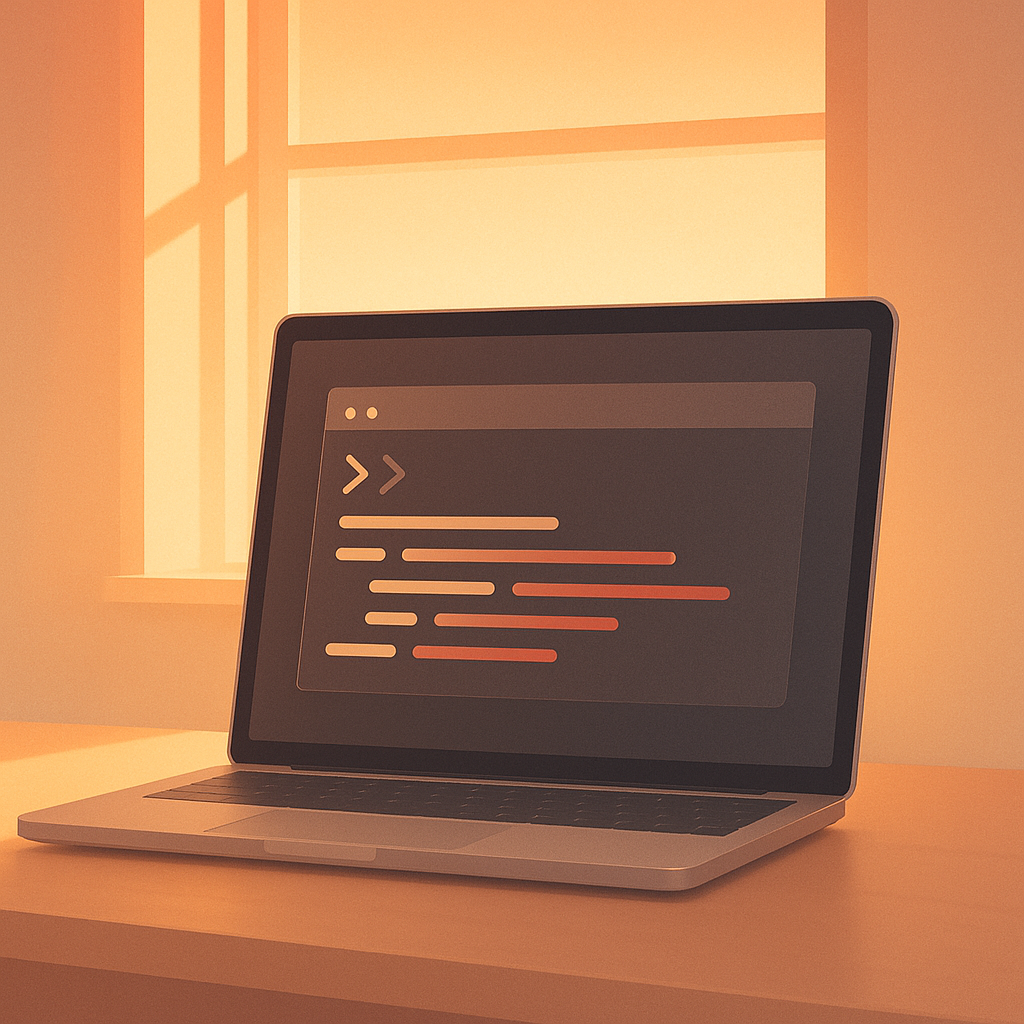
mistral-vibe generate "Explain the difference between async and await in JavaScript" --debug
The debug output shows the prompt that was sent to the model and the raw response, which can help you fine‑tune prompts.
5. Integrate with Your IDE
Most editors let you run terminal commands from a shortcut. For example, in VS Code you can add a custom task:
{
  "label": "Generate Code with Mistral",
  "type": "shell",
  "command": "mistral-vibe generate",
  "args": ["${input:prompt}"],
  "problemMatcher": []
}
Now you can press Ctrl+Shift+P, type “Generate Code with Mistral”, and enter your prompt.
Real‑World Use Cases
1. Rapid Prototyping
When you’re building a new feature, you can ask Mistral Vibe CLI to generate a skeleton. For example:
mistral-vibe generate "Create a Flask API endpoint for user login"
The CLI returns a ready‑to‑copy Flask route, and you can immediately test it.
2. Code Review Assistance
During a pull request, you can run:
mistral-vibe review "Review this JavaScript file for performance issues"
The AI will point out potential bottlenecks and suggest improvements.
3. Learning New Languages
If you’re learning Rust, you can ask:
mistral-vibe explain "Explain ownership in Rust with an example"
The CLI gives a concise explanation and a code snippet.
4. Documentation Generation
For a large codebase, generating docs manually is tedious. Use:
mistral-vibe docs "Generate documentation for the entire project"
The CLI can produce Markdown files that you can commit to your repo.
Comparing Mistral Vibe CLI to Other Tools
| Feature | Mistral Vibe CLI | OpenAI Codex | GitHub Copilot |
|---|---|---|---|
| Runs in | ✅ | ❌ | ❌ |
| Local model option | ✅ | ❌ | ❌ |
| Open source | ✅ | ❌ | ❌ |
| Custom prompts | ✅ | ✅ | ✅ |
| Integration with IDEs | ✅ | ✅ | ✅ |
Mistral Vibe CLI stands out because it gives you a local model that never sends your code to the cloud, and it’s free to use.
Tips for Getting the Best Results
- Be Specific – The more detail you give, the better the output. Instead of “Generate a function”, say “Generate a Python function that calculates the nth Fibonacci number using recursion”.
- Use Prompt Templates – Save common prompts as shell scripts or aliases. For example,
alias mkfunc='mistral-vibe generate "Create a function that..."'. - Iterate Quickly – Run the command, tweak the prompt, and run again. The CLI is fast, so you can experiment in seconds.
- Check the Debug Output – If the result isn’t what you expect, look at the raw model output to see if the prompt was misinterpreted.
Future Roadmap
The Mistral team plans to add:
- Interactive Mode – A REPL where you can chat with the model in real time.
- Plugin System – Allow third‑party plugins to extend the CLI’s capabilities.
- Better Error Handling – More informative messages when the model fails.
These updates will make the CLI even more powerful for developers who want a lightweight AI assistant.
Conclusion
Mistral Vibe CLI is a simple, fast, and open‑source way to bring AI into your coding workflow. Whether you’re a hobbyist or a professional engineer, the CLI lets you generate code, refactor, document, and debug—all from the terminal. With a local 24B model that runs on your laptop and a powerful 123B cloud model for heavy lifting, you have the flexibility to choose what fits your project. Try it today and see how it can speed up your development process.