If you build AI tools or just like experimenting with them, you might have felt this pain: your agent runs on your computer, then you leave the desk, then you forget what happened next. Cursor Remote Control tackles that by letting the Cursor iOS app monitor and reply to local agents while the actual work stays on your machine.
This article is about Cursor Remote Control in plain English, why it matters, what a “local agent” actually means, and what you should watch out for if you want to use remote monitoring safely and smoothly. We’ll also tie it to the bigger trend shown in today’s search results: tools are moving from “chat in a browser” to “control running systems across devices.”
What “Cursor Remote Control” really means (in real life)
The headline sounds simple. But the workflow is the interesting part.
Here’s the basic idea:
- Your AI agent runs on your local device (your laptop or desktop).
- You open the Cursor iOS app.
- From your phone, you can monitor what the agent is doing.
- If needed, you can reply with new instructions.
So the compute stays local, but the control plane comes to your phone. That’s why people call it “remote control.” It feels like you left your agent running in the background and took a small dashboard with you.
This matters because many agent tasks take time:
- Code changes that need multiple steps
- Running tests, then fixing errors
- Writing docs, then updating code references
- Investigating logs before proposing a fix
When these tasks take longer than your attention span, remote monitoring can stop you from missing the moment the agent needs a decision.
Cursor Remote Control is also a sign of where agent UX is going. Instead of one big prompt, you get an ongoing loop: agent works, you check status, you intervene when it matters.
Source: Cursor feature announcement found in the current search results from cursor.com.
Why local agents became the default for dev tools
Let’s be honest, lots of “agent” demos happen in the cloud. But for developers, local tools remain practical.
Local agents often fit better because:
- You can access your files and repo directly
- You can run builds and tests on your real environment
- Secrets like API keys stay in the same place as the running process
- Latency can be lower because code execution happens near your machine
But then you hit a classic conflict:
- Local agent runs where the files are
- You are not always physically at the machine
That is the gap Cursor Remote Control tries to close.
And yes, some people will ask the question: “Isn’t it risky to control a local agent from a phone?”
That’s fair. So let’s talk about how to think about safety, without turning this into fear content.
The key components: local work vs remote control
Think of it as two layers:
1) Local execution layer
This layer is where the agent actually does things.
It may:
- read from your project folder
- write changes
- run a command like tests
- call local tooling
This part should stay on your machine.
2) Remote monitoring layer
This layer is where Cursor Remote Control earns its keep.
It typically includes:
- status updates (what step the agent is on)
- logs or summaries you can scan
- an ability for you to reply with instructions
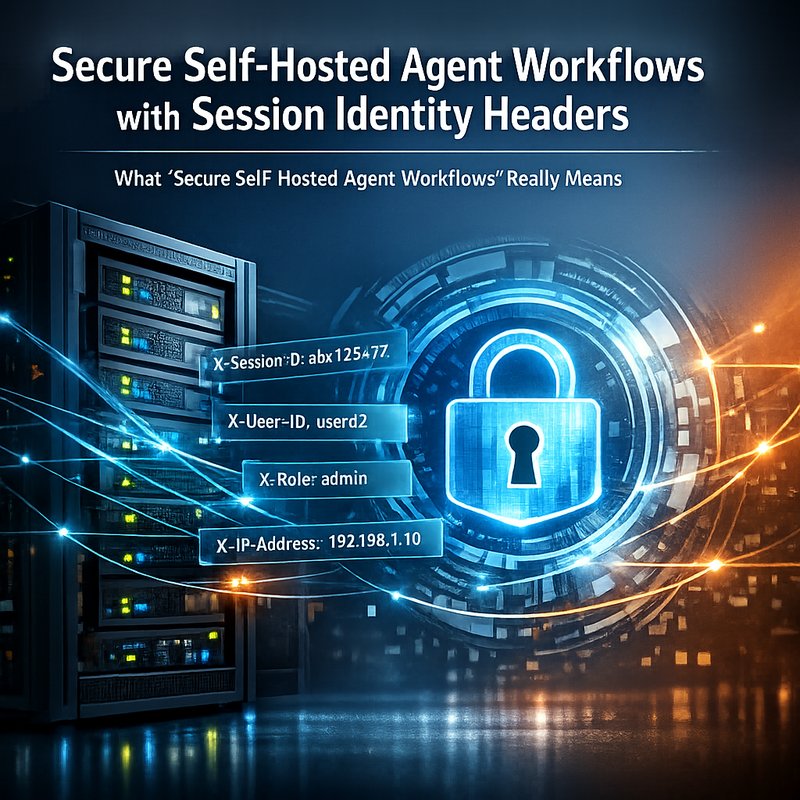
- some kind of session mapping so the iOS app knows which local agent thread to show
The important detail is separation of concerns: remote control should not mean remote execution of your code. It should mean remote visibility and human input.
If a tool ever claims full remote execution of sensitive processes, you should treat it as a higher-risk model.
The Cursor approach described in the search results is best understood as remote monitoring plus reply, for local agents.
How to use Cursor Remote Control without losing the thread
If you try Cursor Remote Control for the first time, you might not know what to watch.
Here are habits that make it feel smooth instead of chaotic.
Start with a clear “handoff moment”
Before you walk away, ask yourself:
- What decision might the agent need from me?
- What output should be reviewed before I approve changes?
For example:
- “If tests fail, tell me the failing test name.”
- “If it proposes a patch, summarize the patch in 5 bullets.”
- “Before editing files in X folder, ask me first.”
Even if the UI is good, you still need a plan for when you will intervene.
Use short replies
When you reply from a phone, you want to be specific.
Better phone prompts look like:
- “Skip lint changes, focus on failing tests only.”
- “Don’t touch config files. Fix code only.”
- “Add one test case for the edge condition.”
Avoid long essays on a mobile screen. The agent does better with short, direction-level instructions.
Treat monitoring like a checklist
Instead of watching every log line, scan for:
- current step
- whether a failure happened
- what the agent is about to change next
- whether it’s waiting for your confirmation
This makes remote control useful, not distracting.
Safety: what to watch for when controlling local agents
Remote monitoring is convenient. Safety is still on you. Here’s a practical checklist you can apply.
1) Confirm the agent identity
Make sure the iOS app is linked to the correct project session.
If you have multiple agent runs, confusion can be dangerous. Wrong session updates can lead to wrong approvals.
2) Lock down permissions
If the Cursor iOS app uses background features, check your phone settings.
You want:
- minimal notification exposure
- permission scopes that match what you need
- lock screen protection for sensitive project data
3) Avoid “blind approvals”
Even with Cursor Remote Control, you are the final reviewer.
If an agent proposes changes that touch:
- security logic
- authentication
- secrets handling
- billing logic
Pause and confirm intent. A phone review should be faster, not lazy.
4) Watch for tool-call style mistakes
Agents sometimes include instructions in a wrong format. In other agent projects, teams fix issues like:
- tool calls being wrapped incorrectly
- tool-call parsing failing and falling back to plain text
This matters because a remote controller can’t solve “agent mis-parsing.” Remote monitoring only helps you see what went wrong.
You can read about this style of fix in open agent changelogs, which often target tool formatting and parsing. For example, the Open Crabs changelog includes multiple parsing and tool-call structure fixes.
So the safety rule is: if something looks odd in the monitoring feed, assume the agent might not be doing what you think.
Cursor Remote Control and the bigger trend: agents that feel “alive”
If you zoom out, Cursor Remote Control fits a larger pattern.
Across the current search results, we also see tools focusing on:
- better tool results (for example, image handling updates in other AI tooling)
- more provable authority for high-risk actions (a concept described in one search result summary)
- self-hosted agents that keep running and need better control and status visibility
The point is not that every tool does this in the same way.
The point is that modern AI workflows are becoming multi-step and ongoing. People need:
- visibility into what’s happening
- a way to intervene fast
- control that works across devices
That is exactly what **Cursor Remote Control is trying to deliver for developers.
A quick “try it tomorrow” setup planYou don’t need a complicated workflow. You just need a repeatable pattern.
Step 1: pick one agent task
Choose a task that normally takes 10 to20 minutes.
Example:
- fix one failing test
- update a small doc set
implement one feature with review
Step 2: set a “review moment”
Before you start, decide the point where you will check in from your phone.
Example:
-I will inspect changes after the first failing build attempt.”

Step 3: leave your after it begins
Let the agent run enough steps that you get real status updates, not just the “hello world” stage.
Step 4: reply with one instruction
iOS, give one clear instruction. Then let it continue.
When you do this a times, Cursor Remote Control stops feeling like a gimmick and starts feeling like normal dev work.
Common questions people ask about remote control for local agents
“ my agent share secrets to my phone?”
I can’t know Cursor’s exact data flow from snippets alone. But as a user, you should treat the phone as another endpoint.
So check:
- what notifications can show on lock screen
- whether logs include secrets
- the app uses secure transport
If you want a general best practice: keep your secrets out prompts and out of logs where possible.
“Can I fully replace sitting at the desk?”
No. Remote control is for oversight and quick decisions.
If the task needs deep review or debugging, you might still need the editor on your desktop. **Cursor Remote Control is a bridge, not a full replacement.
“Does it make agents safer?”
It can make them more manageable, but it does not magically make unsafe actions safe.
Safety still on:
- your review habits
- proper permissions
- the agent’s instruction rules
How to write better agent commands when you use remote monitoring
This part helps a lot. Because when you are on your phone you will be more likely to send smaller, faster instructions.
Try writing commands in this shape1. goal (what you want)
2. constraint (what to avoid)
3. output style (how to summarize)
4. stop rule (when to ask you again)
prompt style:
- “Fix the failing test (goal). Do not change config files (). Summarize the fix in 4 bullets (output). Ask me before editing auth code (stop rule).”
If you do this, Cursor Remote Control becomes much useful. The agent knows when to stop, and you know what to check.
this goes next: multi-device agent dashboards
Lately, the market is rewarding agent tools that feel “together” across devices.
I expect the next improvements to focus on:
better session continuity (less confusion between runs)
- clearer “agent needs you” states
safer defaults for mobile prompts - more structured summaries instead of raw logs
In other words: remote control will likely get more human-friendly.
The trend is already visible because tools likeCursor Remote Control** exist now, and they are built exactly for that reason. They are the gap between your local workspace and your availability.
Conclusion: Cursor Remote Control is about faster human review
Cursor Remote Control is a practical idea: keep the working on your local machine, but let the Cursor iOS app show what’s on and let you reply when needed. That small change reduces the “I walked away mid-task” problem.
If you use it with clear stop rules, short replies, and a of scanning before approving, it can make local agents feel less like a black box.
And you’re thinking about building your own agent workflow, the bigger takeaway is this: agents need a control and status layer that works on the devices people actually carry.
For Cursor, search results point to a concrete step in that direction on Oct 6, 2026
Internal links you can check
If you want to explore how Neura approaches agent workflows and-tool routing, you can start here:
- https://meetneura.ai
-://meetneura.ai/products - https://blog.meetneura.ai/#case-studies
For security scanning inspiration, you can also look at Neura Keyguard Security Scan:
(Helpful when think about what can leak from prompts and logs while agents run.)